How Do I Turn a Photo Into Minecraft?
Turning a photo into a Minecraft build takes about a minute with the right tool: you upload the image, a converter maps every pixel to the closest-colored block, and you get a block-by-block plan plus the exact materials to gather. Here is the full workflow, with the settings that make the difference between a muddy wall and a recognizable portrait.
Step 1 — Upload the photo
Open the Minecraft pixel art generator and drop your photo in. The conversion runs entirely in your browser — the image is never uploaded to a server, so it works offline and private photos stay private.
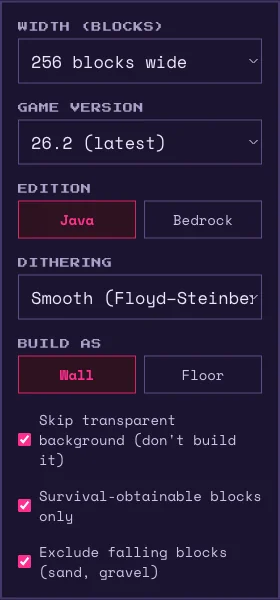
Step 2 — Pick a size that matches the subject
Width in blocks is the biggest quality lever. Faces and detailed photos need at least 128 blocks across to stay recognizable; logos and simple art survive fine at 64. Remember the scale: a 128-block-wide wall is 128 meters in game — bring scaffolding, or paste it with a schematic instead of placing by hand.
Step 3 — Choose dithering
Dithering mixes two block colors to fake in-between shades. Smooth (Floyd–Steinberg) is right for photos — it removes the banding in skies and skin tones. Retro (ordered) gives a patterned, old-school look that suits logos and cartoon sources. Turn dithering off only when you want large flat color areas.
Step 4 — Match the palette to how you play
Keep survival-obtainable blocks onlyon if you will gather materials yourself — it keeps expensive blocks like diamond out of the plan. Pick your exact game version so the converter never suggests a block your server does not have, and keep “exclude falling blocks” on for vertical walls (sand and gravel drop when you misplace a neighbor).
Step 5 — Export and build
Download the PNG to build by hand alongside the material list (it counts every block in stacks of 64), or export a .schem / .litematic schematic and paste the whole thing in seconds with WorldEdit or Litematica.
FAQ
- How do I turn a photo to Minecraft?
- Upload the photo to an image-to-Minecraft converter, choose a width in blocks (256 is a good start), pick your game version and palette, then download the pixel art PNG, the material list, or a paste-ready schematic.
- What size should Minecraft pixel art be?
- For photos and faces, at least 128 blocks wide. Simple logos work at 64. Larger sizes look better but take more blocks — the material list tells you the exact cost before you commit.
- Does converting a photo work in survival mode?
- Yes — enable the survival-obtainable filter so the plan only uses blocks you can farm or mine, and use the material list to gather everything before you start placing.